Tech review: Logitech wants to help you 'master' your desktop setup
Published in Science & Technology News

If you spend your workdays at a computer, you start to notice things.
You’ll notice if your monitor is flickering, or if the text is too big or too small to read comfortably.
You’ll also being to notice if your chair is comfortable and work to adjust it, so your back and arms don’t get tired.
The next thing you’ll notice is how your keyboard and mouse feel in your hands.
When I was in college, I’m not sure I ever thought I’d spend my days at a desk. I was going to be a photojournalist (and I was for a decade), but now I work with a keyboard and mouse instead of a digital camera.
For the last month, I’ve been using a few things from the Logitech MX Master Series of computer accessories, including the MX Keys S keyboard, MX Master 4 mouse and MX Brio web cam.
If you spend your days working on a computer, these are among the best investments you can make to upgrade your computer setup.
These are all available from Logitech.com.
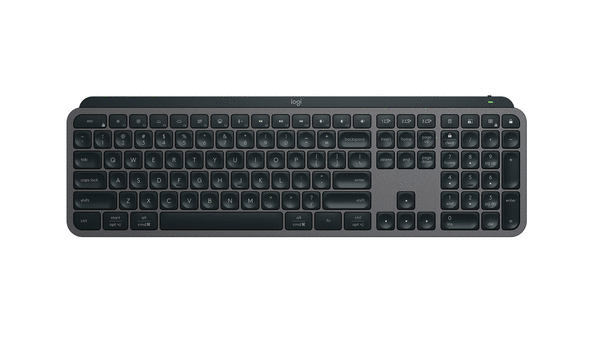
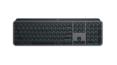
MX Keys S ($129.99)
This is Logitech’s flagship keyboard with a low profile and laptop-style scissor switches under the keys. They keys themselves have small dish-shaped indentations that keep your fingertips centered and really increase typing accuracy (at least for me).
The MX Keys S is solid and doesn’t move around at all on your desk. The typing angle is fixed, you can’t adjust the keyboard angle on your desk, but it sits perfectly for my hands to type comfortably.
It connects to your computer(s) via Bluetooth or an included USB-A receiver. It uses USB-C to charge its internal battery. You can pair the keyboard with up to three devices and there are buttons to quickly switch between them.
The MX Keys S works cross-platform for Mac or Windows, but there is a Mac-specific version as well.
The keys have smart backlighting that illuminates when your fingers move toward the keys. The lighting shuts itself off after about 30 seconds of inactivity.
The top row of keys have icons to allow quick access to features like screen or keyboard brightness, enabling dictation, bringing up an emoji picker, muting/unmuting your microphone and keys for media playback and volume level.
Logi Options+ is software for the keyboard to enable deep customization of every function key for individual apps. You can have different customizations for all your favorite apps. You can also set up smart actions to launch apps, open files, and input custom keyboard commands.
I plan on spending the next few weeks trying to learn all the ways the MX Keys S can help me work better.
MX Master 4 ($119.99)
I’ve always used pretty basic mice.
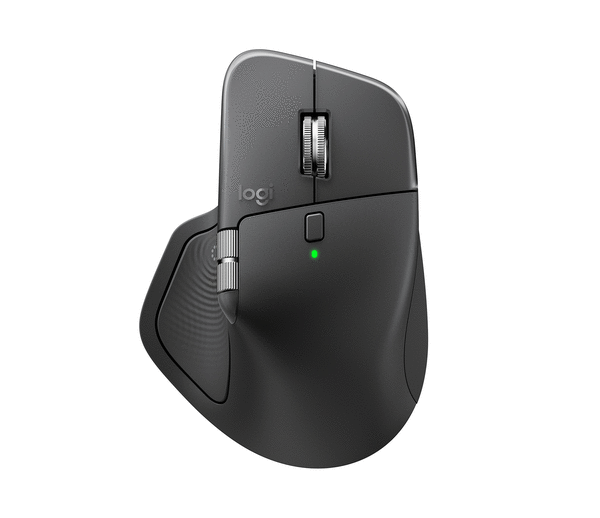
The Logitech MX Master 4 is anything but basic. Just looking at it, you can tell there’s a lot going on.
The mouse has a very distinctive shape that’s ergonomic, but not overly so. There is a tall thumb rest with a surface to rest your palm. It features aluminum scroll wheels for both the horizontal and vertical directions. Don’t scoff at a horizontal scroll wheel, especially if you use large spreadsheets every day.
The MX Master 4 is improved from the previous model by changing some of the surfaces from soft-touch rubber to a harder, textured plastic that stays cleaner after being touched by your fingers all day.
Just under the horizontal scroll wheel, there are three control buttons for your thumb and below those sits a large haptic button that can give you vibrating feedback that’s customizable. The vertical scroll wheel is free-spinning, which means you can flick it with your finger and it’ll spin like a slot machine reel for a really long time, which makes scrolling through very long documents much faster and easier on your hands.
The MX Master 4 can connect via Bluetooth or an included USB-C receiver. Its internal battery charges via USB-C.
The Logi Options+ app is also in use here. You can use it to customize every bit of the MX Master 4 experience. There is a very handy feature called the Action Ring, that is a circle of customizable shortcut icons that is called up by pressing your thumb on the haptic button. If you take some time and learn how to set up the action ring for your frequently used features, it can be a real time saver.
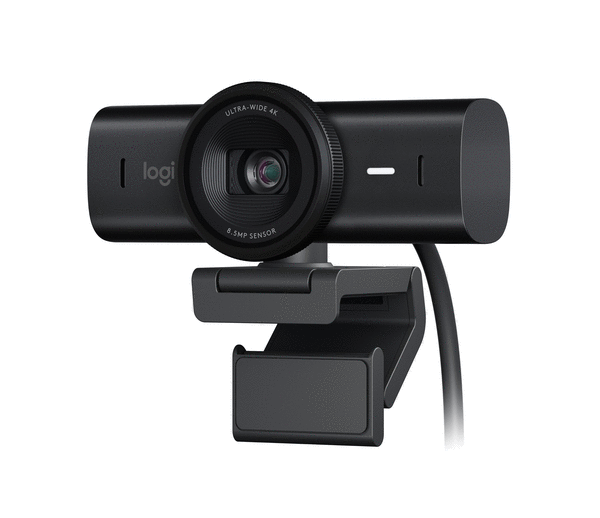
MX Brio 4K Ultra HD webcam ($199.99)
You know how you see some people in your meetings who look crystal clear, while the rest of us look like we are being filmed through a dirty window? Those people have replaced their standard webcam with a 4K webcam like the Logitech MX Brio.
The MX Brio has a resolution of 4K/30fps (3,840x2,160 pixels), with advanced autofocus and a glass lens and an 8.5-megapixel Sony STARVIS sensor.
The camera itself is wonderful, but when you pair it with the Logi Options+ app, you can turn on auto framing, which will keep your centered in the field of view if you move around.
You really have complete control over crop, exposure, image enhancement and focus — all through the app.
And if you’re paranoid about privacy, there is a physical shutter you can close by rotating a ring around the lens.
This is a sweet camera that will make you the best looking person in your weekly Zoom meeting.
©2026 Tribune Content Agency, LLC.






Comments